You’ll get a clip re-tagged with the correct sport, position, or skill, and a fresh analysis run against the corrected tags — so findings actually match what’s in the video.
Steps
- Open the clip in your library and go to its review screen.
- If the clip came back with “No specific skill to coach in this clip,” tap Wrong sport? Tag it and re-analyze right there. Otherwise, tap the ⋯ menu at the top and choose Edit tags.
- Correct the sport, position, or skill in the tag sheet and tap Save. This is saved to the clip permanently — it survives reinstalling the app or switching devices.
- Re-analyze. If Save didn’t already kick off a new analysis, tap the ⋯ menu again and choose Re-analyze to re-run analysis with the corrected tags.
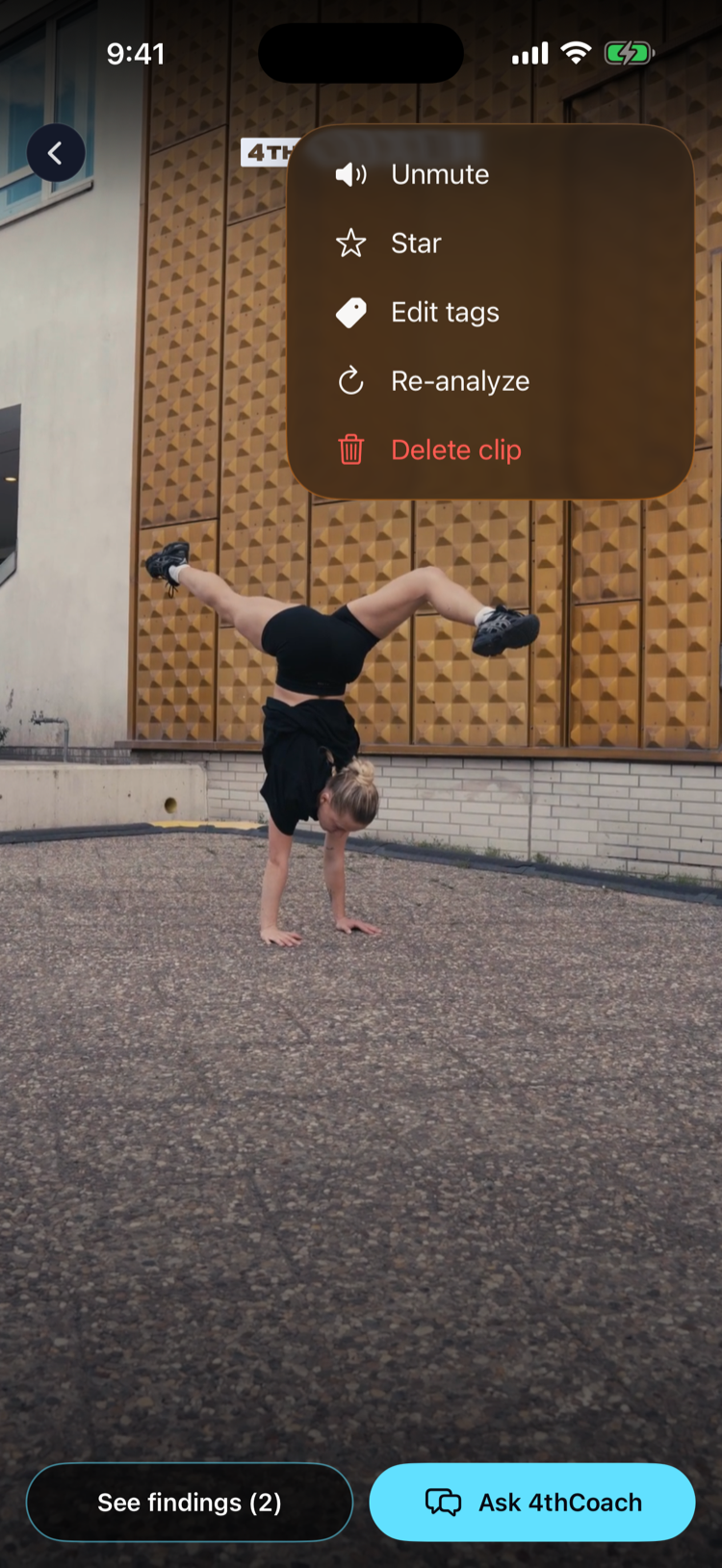 2
2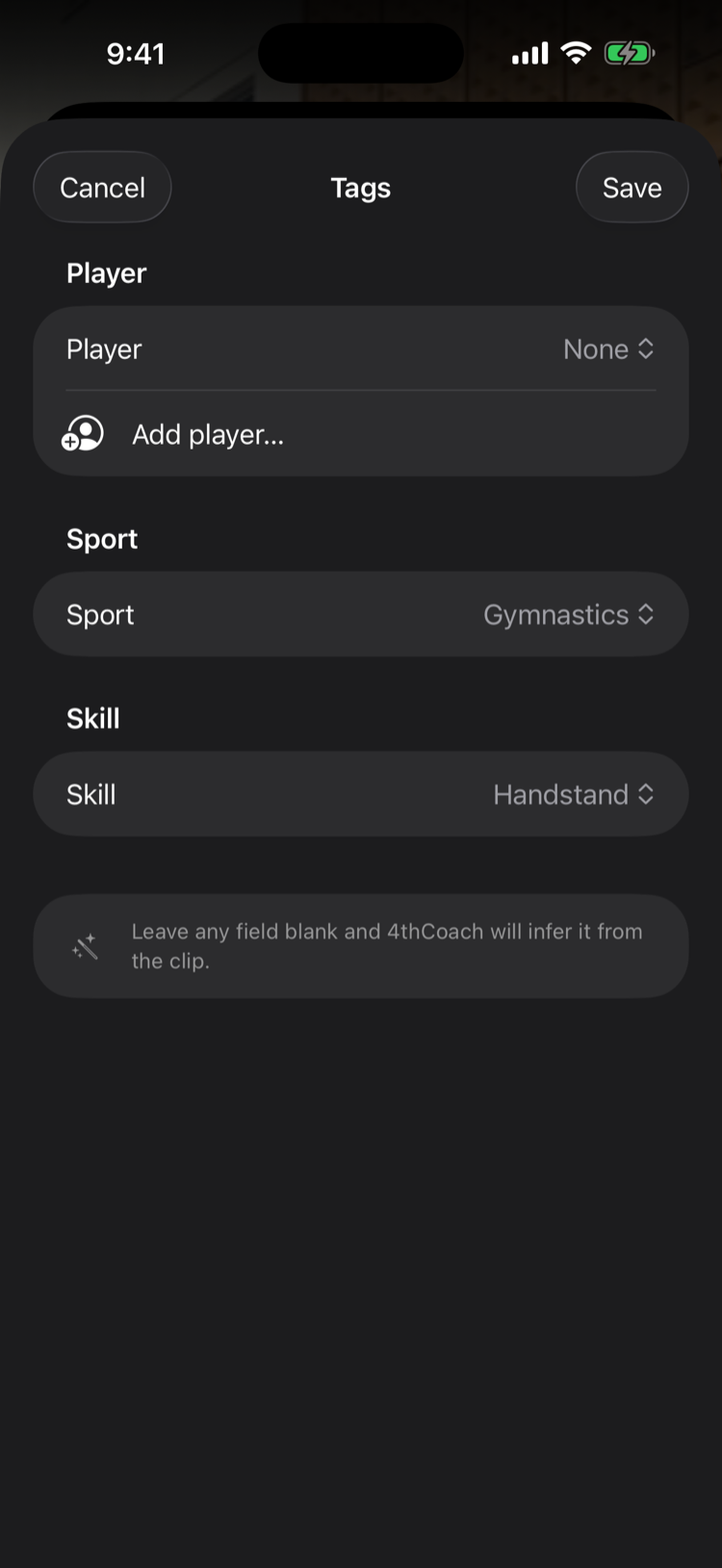
What can go wrong
- The sport still looks wrong after re-analyzing: double check the tag sheet saved the change — reopen Edit tags to confirm the sport shown matches what you picked.
- Does re-analyzing use up another analysis? Yes — a re-analysis counts against your allowance just like a first analysis does, because it runs the video through the model again. What it doesn’t do is create a second clip: the corrected findings replace the old ones on the same clip.