4thCoach turns a single phone video of your player into a short feed of coaching findings — each one a looping moment, a plain-language cue, and a drill to work on. You don’t need any equipment beyond your phone.
First analysis in three steps
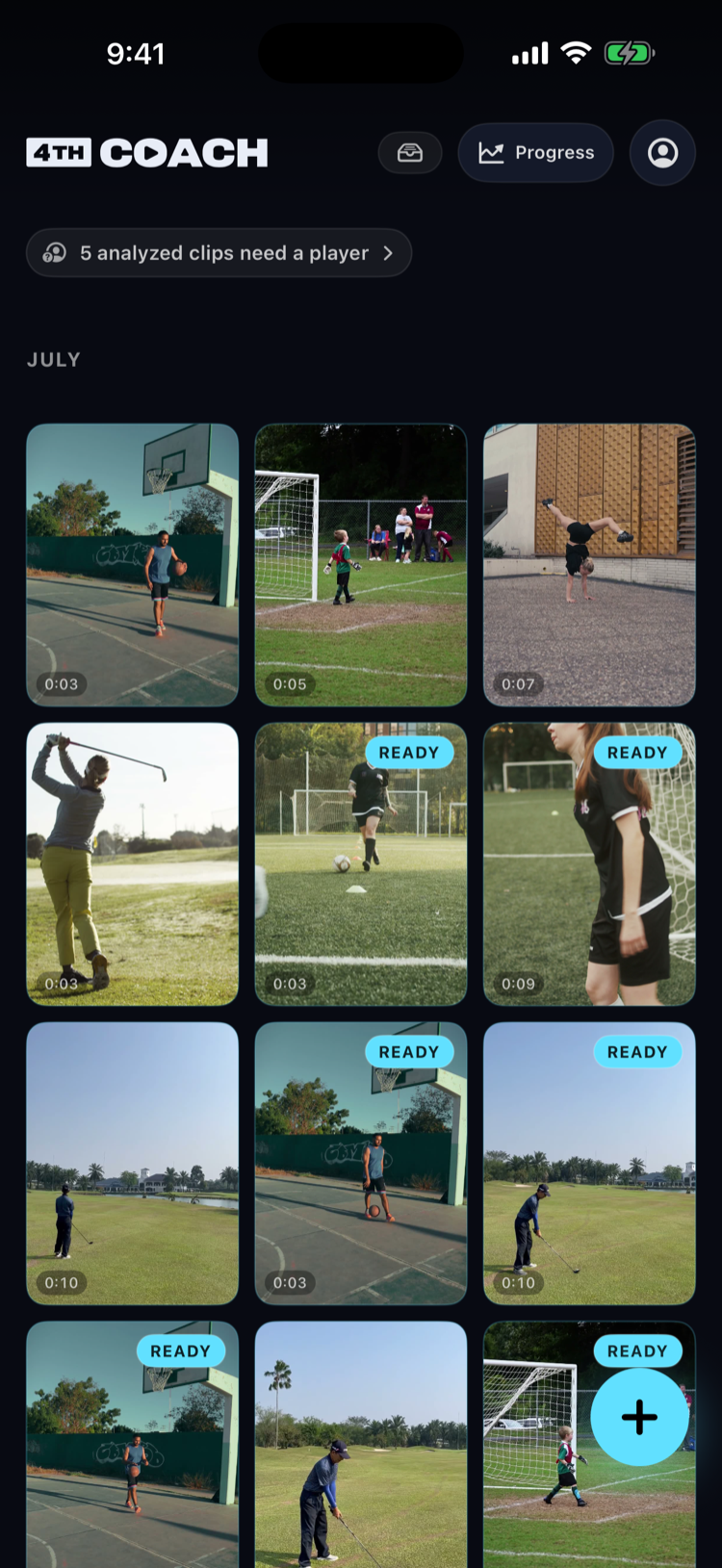
- Record or import a video. Tap the + button on the library home and choose Record a clip to film with your camera, or import a video you already shot. One move works best — a swing, a pitch, a serve — about 5 to 10 seconds of one athlete, head to feet in frame, phone held still. A whole game or a full practice won’t work. 4thCoach coaches one move at a time, so a long video has to be trimmed to a single move before it’s analyzed. The app says this the first time you record or import, and you can re-read it any time from How to film a great clip on the import screen.
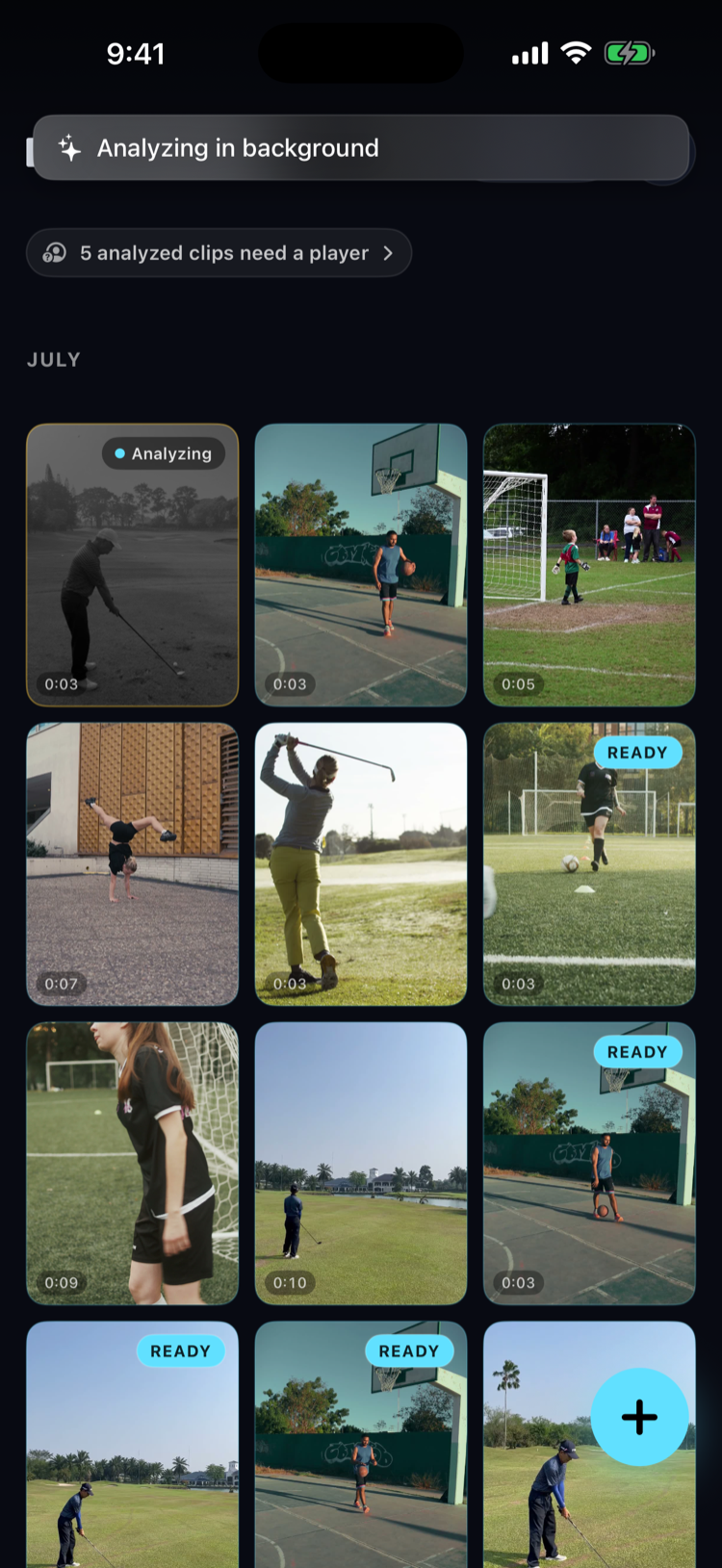
- Your clip uploads and analyzes. A fresh recording starts uploading and analyzing on its own — there’s no separate Analyze tap for a fresh recording. An imported clip starts analyzing when you confirm the import with Add & analyze. Findings typically appear in 30–90 seconds, each anchored to the exact moment it’s about.
- Add your player when 4thCoach asks. Once your first findings are in, if you haven’t added a player yet, 4thCoach prompts you to name the player right there in the feed — auto-detecting the sport and skill either way. After that, you can attribute future clips to a player right away, or leave one unassigned and tag it later.
If something doesn’t look right
- Analysis is taking longer than usual: most clips finish in the 30–90 second window, but a longer clip or a slow connection can take a bit more. It keeps running in the background even if you leave the screen.
- Wrong sport detected: see How do I fix a wrong sport?.